

In this DiskInternals Partition Recovery review, we got our hands on the latest version of this long-standing recovery tool to see if it still holds up. We wanted to find out how well it recovers lost partitions, how smooth the experience is for regular users, and whether the pricing makes sense compared to what you’re getting.
Quick Verdict
🏆 Best for: Tech-savvy users looking to recover deleted/lost partitions on NTFS, FAT, UFS, or ReFS.
If you’re trying to recover lost or deleted partitions on file systems like ReFS, FAT, UFS, or NTFS, this tool earns its place. In those use cases, it gets the job done. However, if you’re looking for something more versatile or beginner-friendly, there are other options out there that offer stronger file system support, better UX, and smoother workflows. It’s decent, but far from the most complete solution on the market.
Pros
- Supports NTFS, FAT, ReFS, UFS, and VMFS
- Offers recovery from deleted and lost partitions
- One-time license model available (no forced subscriptions)
- Clear visual breakdown after scan with pie chart and file explorer-style view
- No support for exFAT, which is a major gap for external drives
- Barebones UI with minimal progress feedback
- Some preview formats (like HEIC) didn’t work
- Recovery process can feel tedious and manual
Overview
DiskInternals has been in the recovery game since 2003, and they’ve gone deep into the “one tool per job” philosophy. As of now, they offer around 30 separate programs – not bundled into a suite, but split by format, system, or use case.
Partition Recovery is the one they push the most, but there’s a tool for pretty much everything: NTFS, Linux partitions, EFS encryption, SQL databases, Outlook PSTs, even DVR footage. You won’t find much in the way of modern UI or cross-platform convenience. But if you need something oddly specific (like recovering files from a formatted VMFS volume or a broken Access database), they probably already made an app for that.
By the way, we already have a separate review of DiskInternals Uneraser on our blog. That tool overlaps quite a bit with the “Fast recovery” mode in Partition Recovery. If you’re only dealing with recently deleted data and don’t need the full partition rebuild features, Uneraser might actually be the better option for you.
But let’s get back to the tool we’re actually reviewing – DiskInternals Partition Recovery.
Main Features
Here’s what DiskInternals Partition Recovery actually gives you when it comes to features.
- First, there’s a built-in recovery wizard. It pops up the second you start the program and walks you through every step: picking a drive, choosing the scan type, browsing recoverable files.
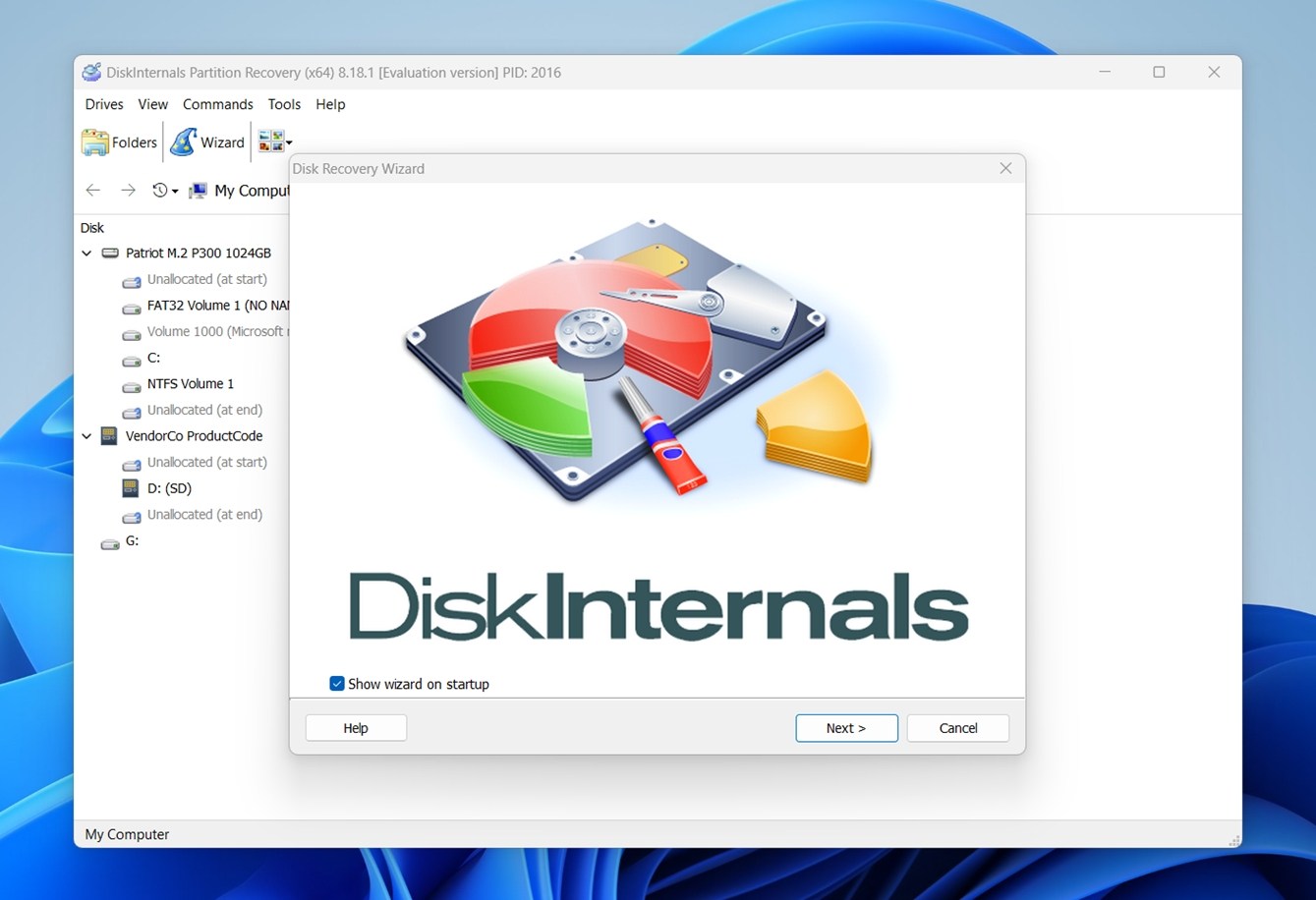 You don’t need to tweak anything manually unless you want to. It works on all versions of Windows back to XP, and for most people, the process is almost completely hands-off.
 - Under the hood, it actually combines three separate tools: NTFS Recovery, FAT Recovery, and Partition Recovery. That means it supports a wide mix of file systems: FAT, NTFS, ReFS, UFS, HFS, APFS (read-only), Ext2 through Ext4, ReiserFS, XFS, and even RomFS. Basically, if the disk shows up in Windows, the tool can probably scan it.
- It has native support for RAID arrays and Windows Dynamic Disks, so it can read striped, mirrored, or spanned volumes without extra steps.
- It also works with virtual disk images from VMware, VirtualBox, Microsoft VirtualPC, and Parallels. That means you can recover data from VMDK, VHD, or other formats without booting the VM. Same goes for forensic images: it supports EnCase (E01) and ProDiscover formats.
- You can export recovered files directly over FTP, burn them to a CD/DVD, or save them to any local or network drive visible in Windows. It also supports recovery over a network, which is helpful in remote access situations.
User Interface and Scanning Modes
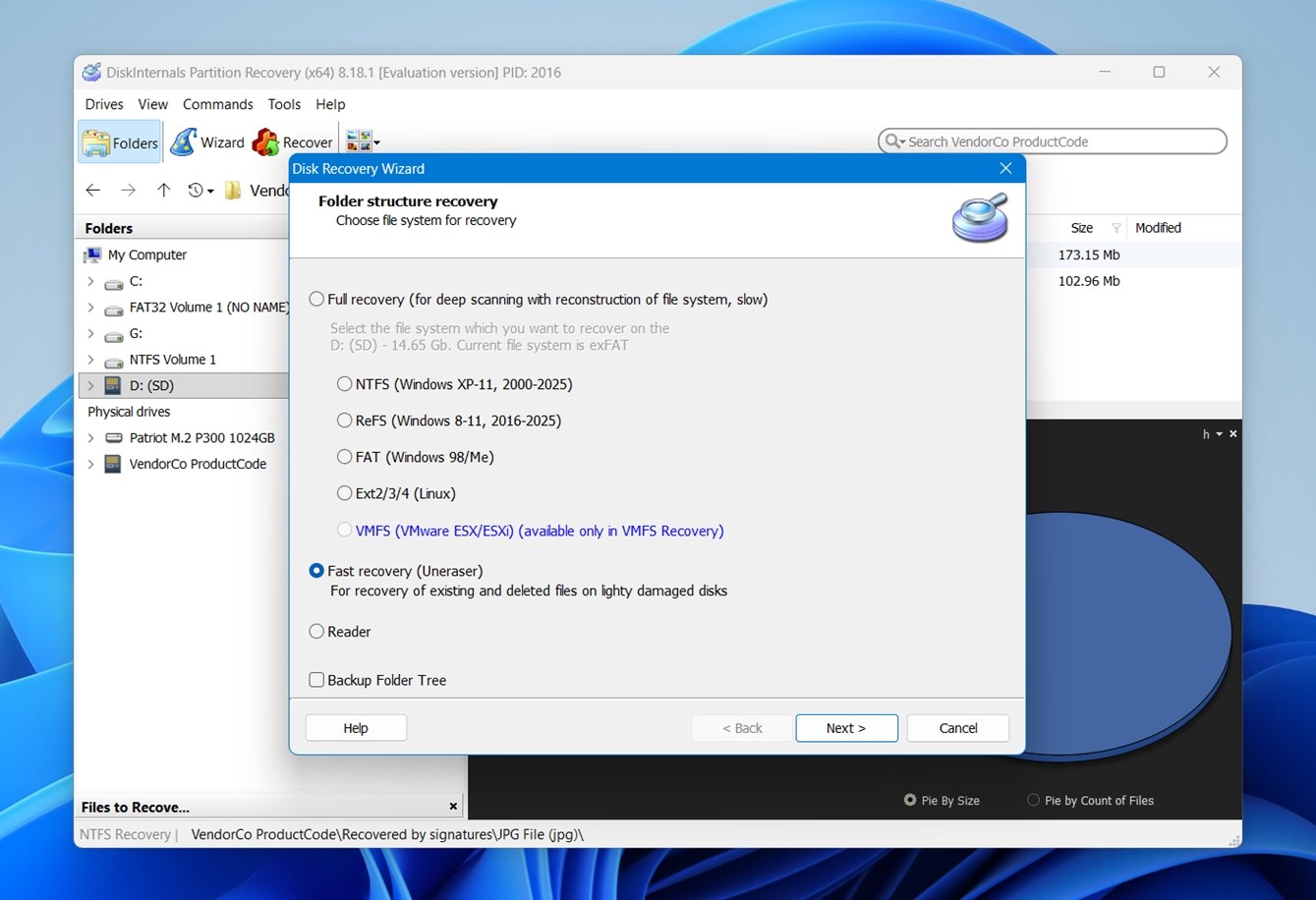
As we already said, the first thing you’re going to see when you launch DiskInternals Partition Recovery is the wizard. Yes, it looks very dated, but at least it tries to guide less technical users who might be unsure where to start.
First thing it asks? Choose your scanning mode. You get three options:
- Fast recovery (Uneraser) is the quickest. It scans for files that were recently deleted or are still intact in readable sectors. This mode doesn’t rebuild the file system, just skims the surface. Useful if you know the files were lost recently and the partition wasn’t heavily damaged.
- Full recovery is where the tool really gets to work. This scan checks every disk sector, pulls out whatever data it can, and reconstructs the partition structure virtually. Your actual drive stays unchanged, but inside the app, it acts like it rebuilt everything. It’s slower, but it usually finds more.
- Reader mode is more like a mounted preview. It’s handy when a disk is unreadable in Windows (like an APFS or EXT4 volume), and you just want to browse and extract files. Think of it as a read-only explorer for damaged (or foreign) file systems.
How We Tested DiskInternals Partition Recovery
To see how DiskInternals Partition Recovery performs in real-world conditions, we set up two of the most common partition loss scenarios – situations that regular users (and techs) actually run into.
We wanted to see how well it handles cases where things go wrong at the partition table level.
- For the first test, we used a 16 GB SanDisk Ultra USB 3.0 flash drive (NTFS) card and deleted an entire partition on it. Just a clean partition removal to see if DiskInternals Partition Recovery could detect what used to be there and rebuild the file system structure in a usable way.
- For the second test, we switched to a 64 GB Samsung EVO Plus microSD (exFAT) and intentionally corrupted the partition table so the device appeared as RAW in Windows. This is a super common case we’ve helped plenty of people deal with over the years. The goal here was to see whether the software could make sense of a completely unreadable partition and bring the file hierarchy back to life.
We didn’t do anything exotic here. No RAID arrays, no edge cases, just run-of-the-mill stuff that 99% of people who search for partition recovery software actually deal with.
We’ll go through our findings in detail a bit later, but before that, a quick note: like always, we’ll be giving DiskInternals Partition Recovery a final score at the end of this review. And it won’t be based on recovery results alone.
We rate each tool across a few key metrics:
| Metric | What We Measured |
| Recovery success rate | % of data recovered |
| Scan speed | Total time to complete both fast and full scans, and how responsive the tool felt while scanning |
| Ease of use | How easy it was to follow the recovery steps, overall UI clarity, and general stability |
| Value for money | What the free version actually lets you do, what the paid license unlocks, and whether pricing feels justified |
We’ll give each of these a score from 1 to 10 based on our hands-on testing, then average them out for the final rating. Recovery results will weigh heavily (but not ignore usability and pricing trade-offs).
Recovery Workflow
Now let’s talk about the recovery workflow.
When you first launch DiskInternals Partition Recovery, you’re greeted with a startup wizard. You can skip it if you prefer, but it actually helps organize the process.
Once you’re in, the interface shows all detected volumes on the left, both logical and physical. After selecting your drive, you choose between Full Recovery and Fast Recovery.
Before the scan begins, you’ll be prompted to pick the file system you want to recover: NTFS, FAT, ReFS, ext3/4, and even VMFS are available.
Once you start a full recovery scan in DiskInternals, you’ll see a screen like the one above, which shows detected partitions, basic metadata, and a classic progress bar crawling from left to right.
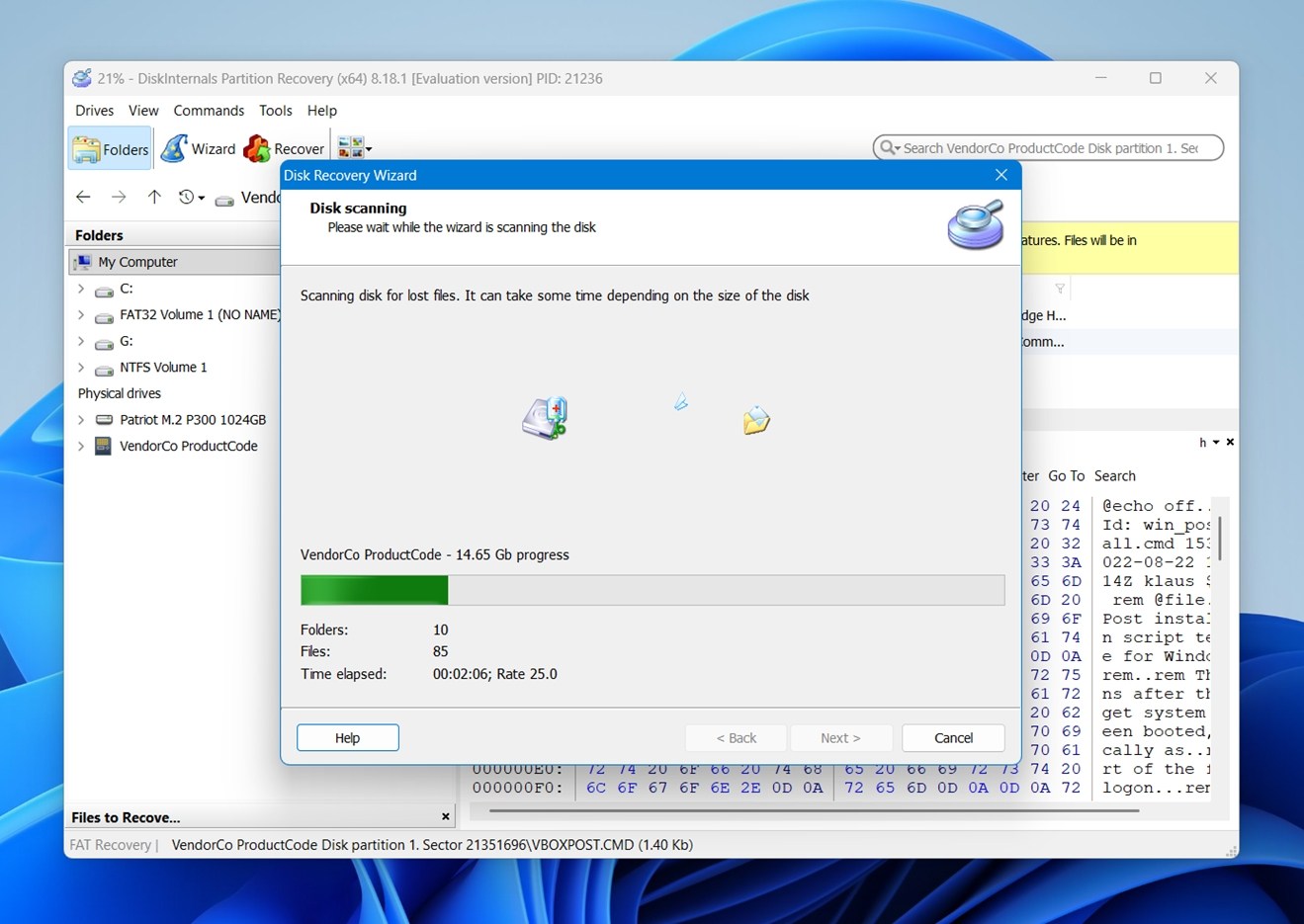
At this point, there’s nothing to tweak or adjust – it’s a waiting game. And not a short one, either. Expect to step away for a bit.
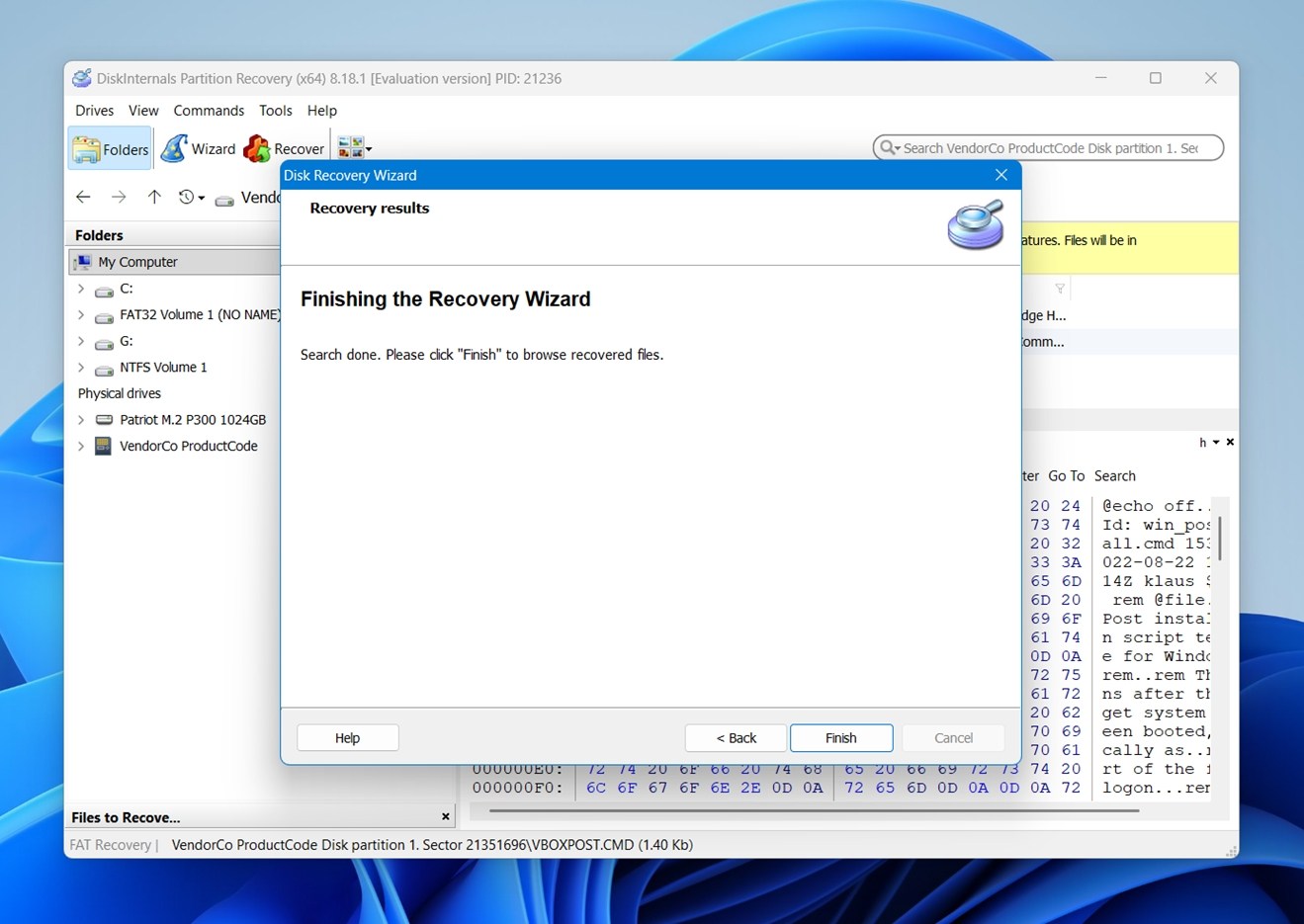
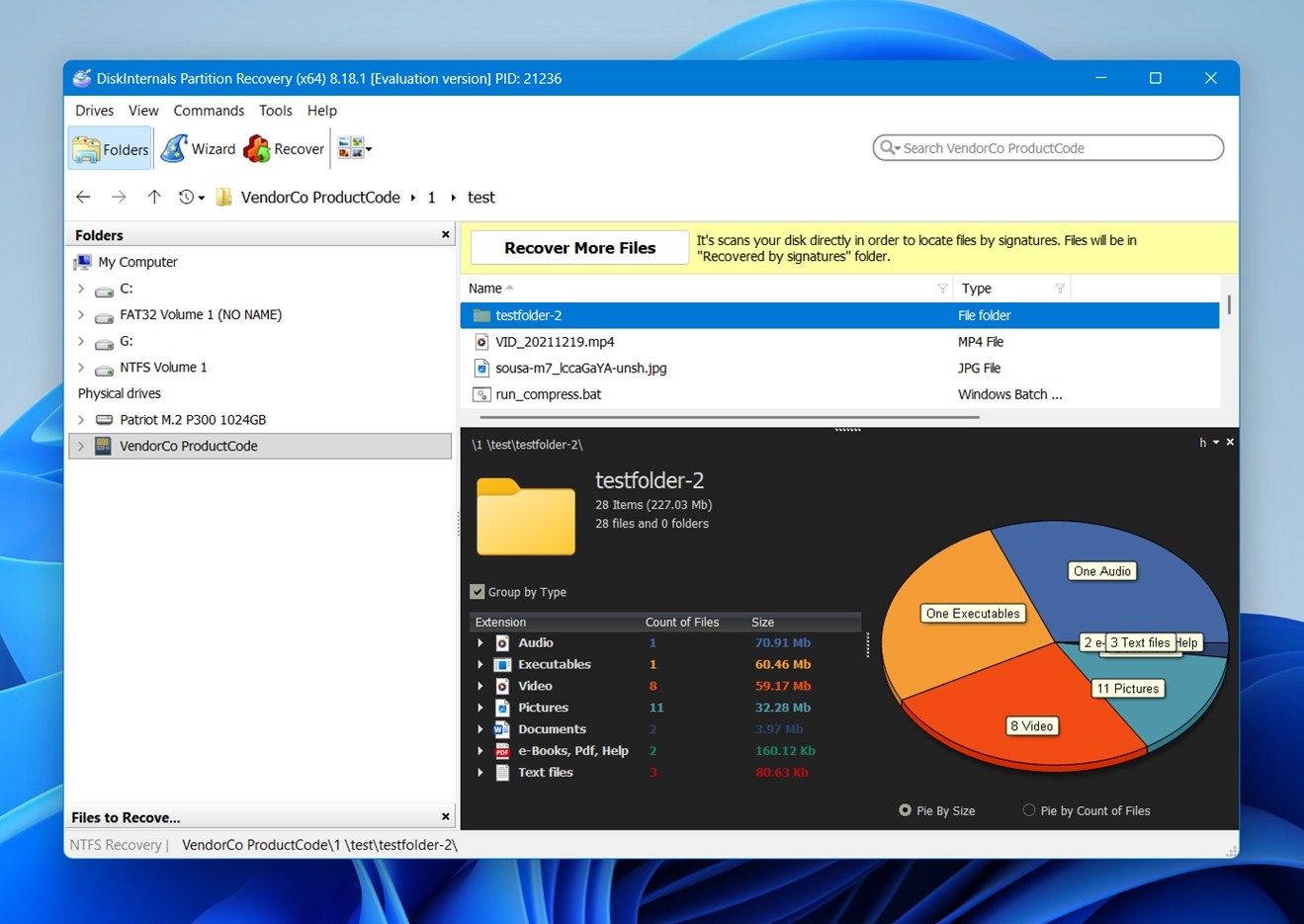
Once the scan finishes, you’ll land on a results screen that lets you browse recovered data like you would in File Explorer. The layout is familiar: folders, file details, and a nice touch – a pie chart visualization at the bottom. It breaks down file types by size or count, which is handy for quickly spotting where the bulk of your data is.
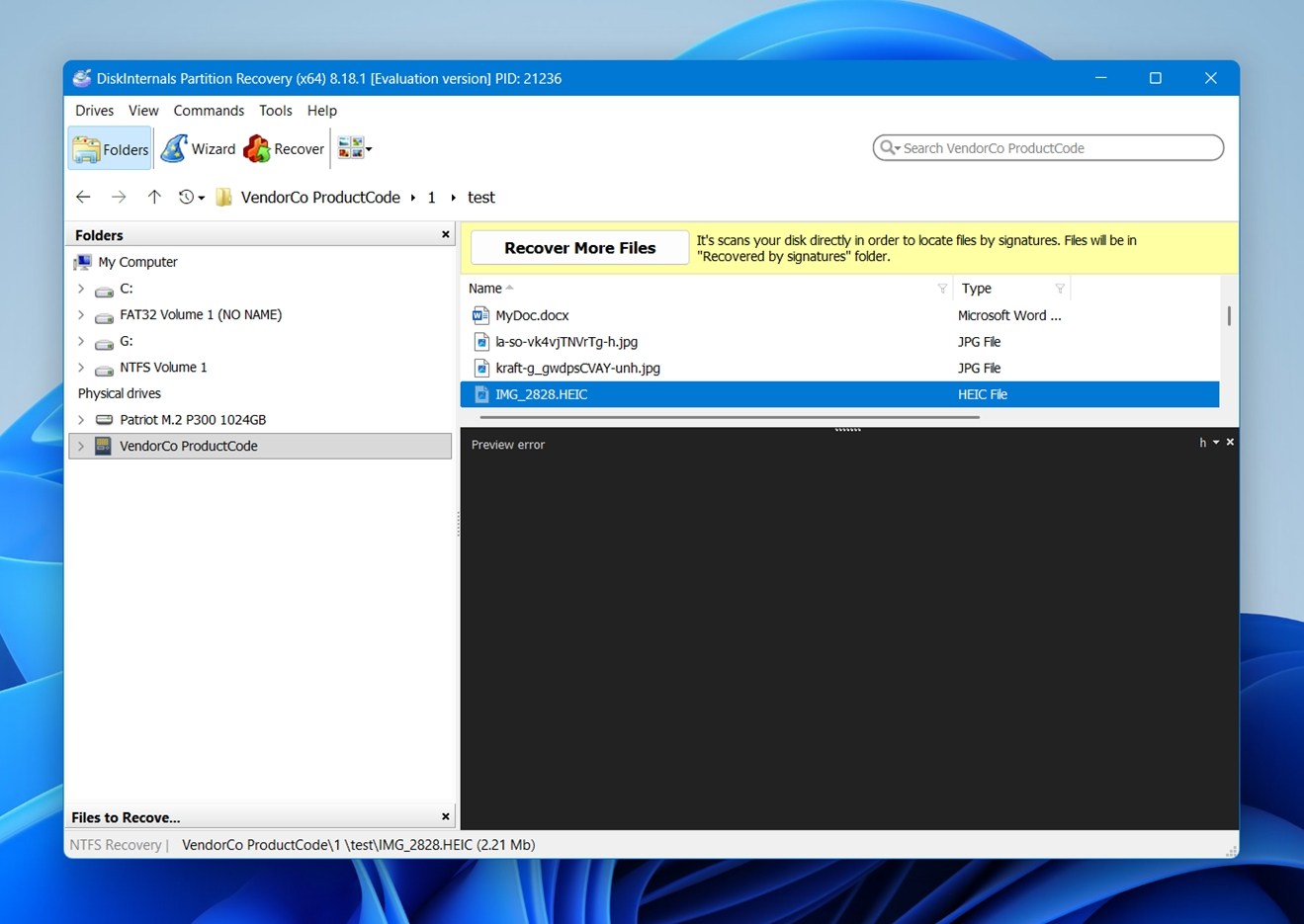
You can preview many files directly in the interface: images, documents, videos in some cases. That said, not everything works perfectly. In our test, HEIC files (common on iPhones) failed to preview, even though they were recovered.
To finish saving your recovered files, just choose where you want them to go. Use the Browse button to pick a folder. Once that’s set, leave the other options as they are unless you know what you’re doing.
Recovery Performance
The results couldn’t have been more different.
In the first case (a deleted NTFS partition) the tool performed flawlessly. It brought back the entire folder structure, including JPG images, MP4 videos, PDFs, HEIC photos, everything.
Every file name was intact, and we didn’t run into any corruption issues when opening them after recovery. Even previews, which had been unreliable in earlier steps, weren’t a problem once the files were restored. This was a best-case scenario.
But in the second test (on an exFAT partition) the tool failed entirely. It didn’t detect or recover a single file. While DiskInternals doesn’t officially list exFAT as supported, that’s a big deal when you consider how many external drives, SD cards, and USB flash drives use this file system by default.
So if you’re hoping to recover from an exFAT device, don’t count on this tool pulling it off.
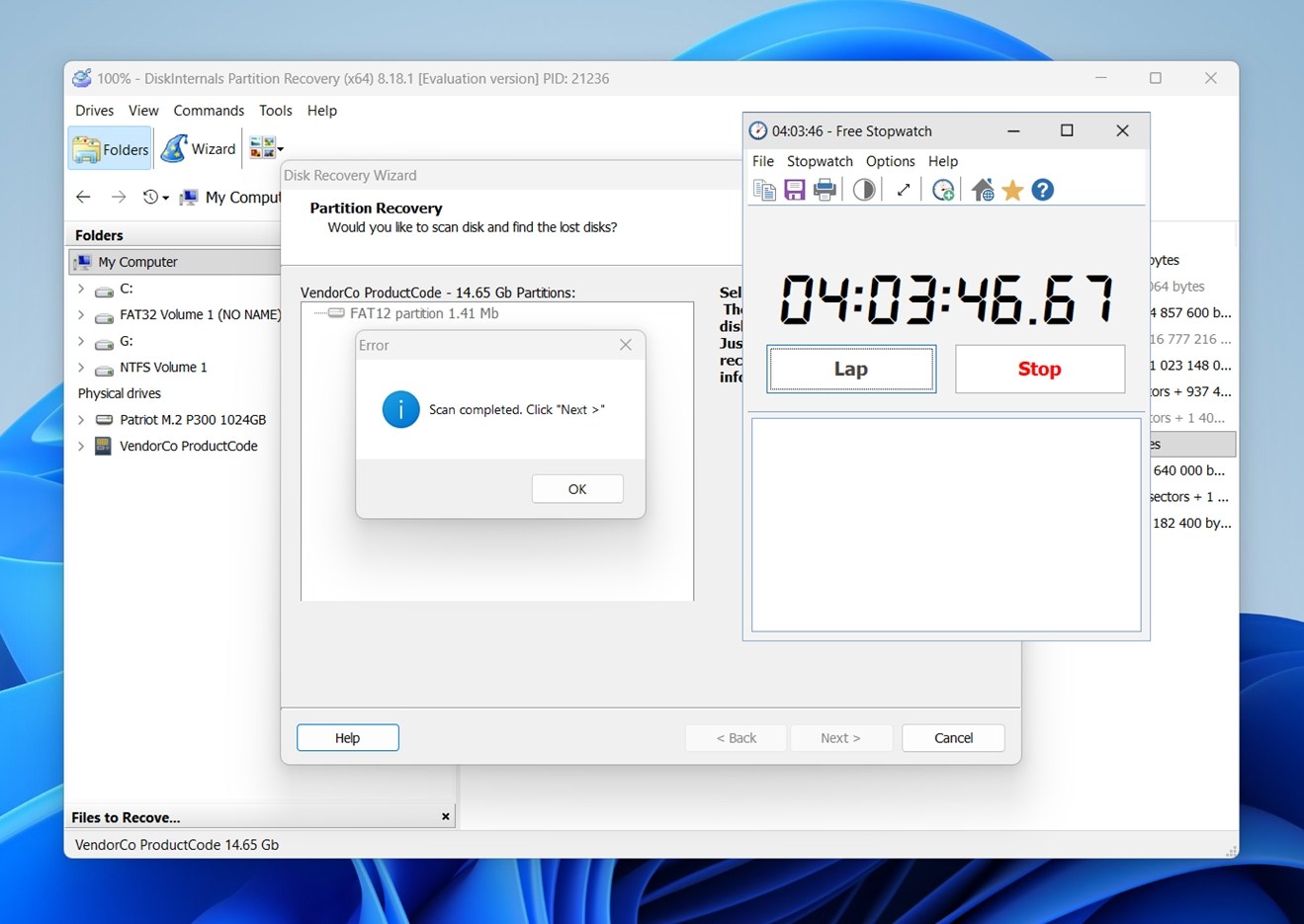
As for speed: in the NTFS test where recovery worked, the tool finished scanning in about 10 minutes, which is right in line with other leading recovery tools. On the other hand, the failed exFAT scan took nearly 4 hours to complete, even though it ultimately didn’t find anything.
Pricing and Value for Money
DiskInternals Partition Recovery comes in three editions: Personal, Business, and Technician.
Each tier unlocks different features and use rights, and as you’d expect, pricing scales up depending on what you’re allowed to do with it.
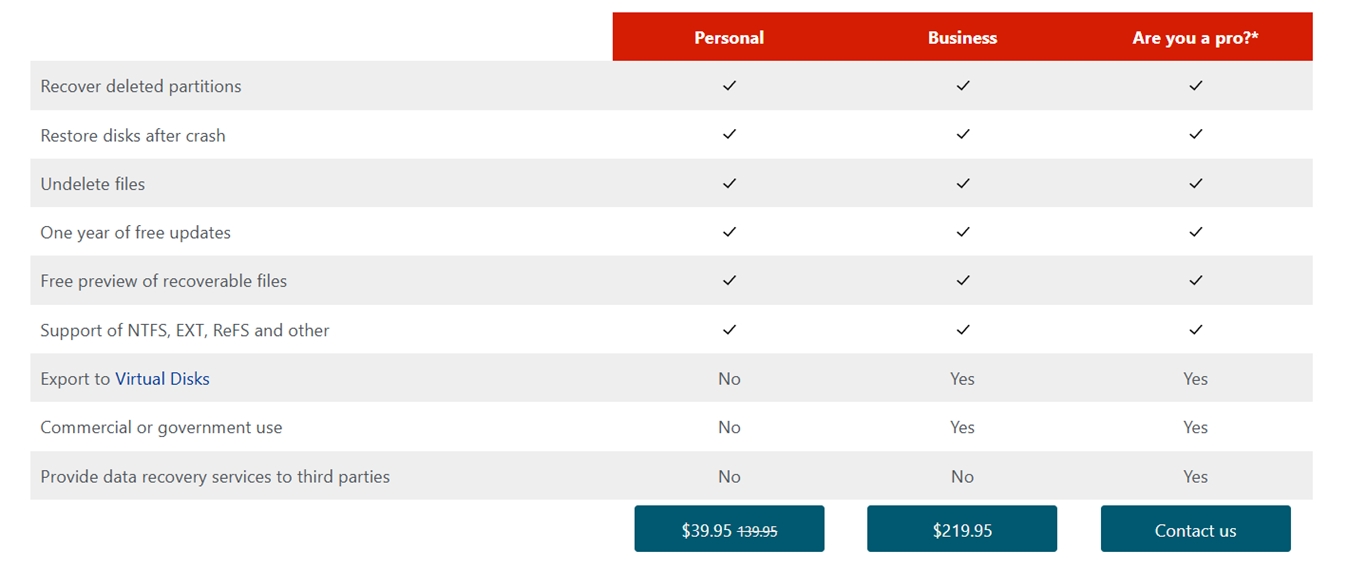
- Personal ($39.95 discounted, normally $139.95). This is aimed at individual users who need to recover partitions or deleted files from their own drives. You get the core functionality: full scans, file previews, recovery for NTFS, EXT, ReFS, and other systems. What you don’t get: exporting to virtual disks, commercial use, or any kind of technician-style usage. If you’re doing recovery at home, this will probably cover your needs.
- Business ($219.95). This tier unlocks additional features like virtual disk export and allows commercial or government use. So if you’re working in IT or managing systems at a company, this is the version that keeps you on the safe side of licensing.
- Technician (price not listed). This one’s for data recovery pros. It includes everything above and adds the right to offer recovery services to clients. If you’re fixing drives for other people and charging for it, this is the license you’d need.
Each license includes one year of free updates, and you can preview recoverable files without paying upfront, which is nice. But we’ve seen people get tripped up by that trial – since you can’t actually save any data without a license, the “free” version is more of a demo.
Comparison to Alternatives
This DiskInternals review wouldn’t be complete if we didn’t look at how it stacks up against a few other recovery tools; otherwise its pricing and value feel a bit abstract (especially when there are free or cheaper options on the table).
Let’s take a quick look at a few popular alternatives and how they compare across key factors.
| Tool | Supported File Systems | OS Support | Pricing | Free Tier | Notable Features |
| DiskInternals Partition Recovery | NTFS, FAT/exFAT, ReFS, Ext2/3/4, XFS, HFS+, APFS (reader) | Windows only | Personal $39.95;
Business $219.95 |
Preview recoverable files | Deep scan + partition rebuild; Reader for foreign FS |
| TestDisk&PhotoRec | Virtually all file systems (via signatures) | Windows, macOS, Linux | Free | Yes, fully free | Powerful partition rebuild + raw file carving |
| DiskGenius | NTFS, FAT, exFAT, Ext, ReFS, others | Windows | Free/basic; paid upgrades | Yes (you can recover files smaller than 64 KB) | Partition management + recovery + cloning |
| Disk Drill | NTFS, FAT32, exFAT, ReFS, EXT2/3/4, HFS+/APFS | Windows, macOS | $89 for PRO | Yes (recover up to 100 MB for free on Windows) | User‑friendly UI; powerful data recovery + many extra tools |
| R‑Studio | NTFS, FAT/exFAT, Ext, HFS+, others | Win, macOS, Linux | $79.99 – $899.00 | Demo (free recovery of files smaller than 256 KB) | Advanced scanning; professional focus |
Here’s how they break down in context:
- TestDisk + PhotoRec – free, open‑source, and capable of handling nearly every file system you can throw at it. The flip side is that it’s command‑line oriented and not very approachable for most people.
- DiskGenius – a Windows tool with a mix of partition management and recovery functions. Its free tier is decent and can rebuild partitions, but deeper tools require a paid license.
- Disk Drill – much more polished and user‑friendly than DiskInternals, with solid previewing and broader OS support (including macOS). Its pricing is competitive, and lifetime licenses or bundles sometimes make it cheaper in the long run, and it generally delivers more out of the box. If you take into account its strong performance in most recovery scenarios, plus all the extra tools it includes (like Byte‑to‑byte backups, Advanced Camera Recovery, and built‑in data protection), Disk Drill quickly pulls ahead in overall value for money.
- R‑Studio – a professional‑leaning tool with deep scanning and raw recovery power. It’s more technical, but trusted by many IT pros.
In short, DiskInternals Partition Recovery sits somewhere in the middle: it’s more accessible than TestDisk, more focused on partition rebuilding than many consumer tools, and less polished than modern UIs like Disk Drill.
If you want a free or low‑cost option and you’re comfortable with a rougher interface, TestDisk (plus PhotoRec) or DiskGenius might serve you well. If you want a smoother user experience and a broad overall recovery, Disk Drill is a strong alternative.
Customer Reviews
DiskInternals Partition Recovery isn’t the most well-known recovery software out there, and you can definitely see that reflected in the mix of reviews online.
On Trustpilot, the overall rating is low (2.4 stars from 27 reviews). A lot of the negative comments mention issues with pricing clarity, licensing, or unexpected limits in the software. One user shared:
“TL;DR: Earlier this year I renewed one month before expiration. Renewal does not extend current licence—it resets it. Requested refund, stating I would renew again after expiration. Tried to renew. Refused due to refund, told me to go elsewhere, no exceptions.”
Another user commented on performance expectations:
“I am currently using it right now, and it is taking a whole hour, even more, to load my files. Everyone is saying that it is super fast, but I don’t know if I should trust them.”
So it’s clear that support policy and scan times don’t meet expectations for everyone.
Over on G2, the picture looks a little better. DiskInternals scores around 4.5 stars, though with far fewer reviews (7 at the time we checked). Some feedback there highlights successful recovery outcomes:
“Great recovery to maximum extent. – Easy to use. – Able to recover disk partition as well as data. – Very less percentage of loss of data. – Multiple more features to use.”
So overall, the software has quite modest feedback online. While there are definitely some positive reviews, the number and tone of negative experiences drag the average down.
Final Verdict
We think we have everything we need to calculate the final verdict, so here it is based on our hands-on testing:
| Metric | Score | Notes |
| Recovery success rate | 6 / 10 | Mixed performance. Recovered everything from an NTFS partition, including images (JPG, HEIC), videos (MP4), and PDFs with original filenames intact. But failed to detect files on an exFAT partition. |
| Scan speed | 7.5 / 10 | Competitive timing. Around 10 minutes on NTFS, but nearly 4 hours on exFAT. Not the fastest we’ve tested, but still decent for small to medium jobs. |
| Ease of use | 6 / 10 | Fairly outdated UI and clunky workflow, but usable if you’re patient. You’ll spend more time waiting and double-checking things than with tools like Disk Drill. |
| Value for money | 6.5 / 10 | There’s a free option, but it’s very limited. The paid tier is okay if your needs align with supported file systems, but it’s not a versatile all-rounder. |
Overall Score: 6.5 / 10
The tool delivers solid results in some specific cases – for example, file recovery from a deleted NTFS partition where it found everything, preserved structure and filenames, and caused no corruption on output. That alone makes it worth considering if you’re working with internal drives or older setups. But on the flip side, the lack of exFAT support is a major blind spot, especially for anyone trying to recover from USB drives, SD cards, or other external media, where exFAT is a dominant format.
It also loses points for being sluggish on larger scans and offering very little feedback during recovery. Beginners might find the whole process overly manual. And even if you’re experienced, there’s a good chance you’ll feel limited by its format support and interface quirks.
This isn’t a bad recovery tool – in fact, it’s quite decent when it works.