


Faced with a problem that’s asking you to format your SD card? Or maybe you’re thinking of resetting your SD card with a format, and wanted to learn more before going ahead. There are many reasons why you’d want to format an SD card, including when it becomes unreadable, corrupted, or old enough that it’s started displaying errors.
The simple answer: yes, formatting does delete everything on the SD card. But, most of the time, the data is still there, just inaccessible (at least when it’s a quick format we’re talking about).
Our team performs formats almost every other day as part of our content creation process. In this article, we’ll explain what happens when you format an SD card, and how to recover data after the fact.
Does Formatting Erase All Data?
You can format an SD card without deleting everything, but it requires a few additional steps beyond just formatting. Formatting is the process of refreshing the file system your SD card uses. Essentially, it’s like resetting your SD card (which is why it’s an effective solution to fixing a lot of issues). No matter what, this process will delete the data on your SD card. However, the type of format you perform is important in understanding how recoverable your data is, as data can be recovered even after a format is performed.
To answer the question “Does formatting erase all data?”, let’s break down how each type of format operates.
- Quick format – Performing a quick format will only delete references to the data on your SD card. The data itself will remain, which gives you a window for recovery. However, once new data is written to the same location as the old data, recovery is no longer possible.
- Full format – A full format rewrites each sector of the drive. This overwrites the existing data, making it impossible to recover. Additionally, a full format checks the entire drive for bad sectors, which can save you from problems later on.
- Low-Level/Secure Format – Many cameras offer a “Low-Level Format” or “Secure Format” option. This format sends ERASE or SECURE_ERASE commands to the SD card’s controller. These commands clear the memory blocks at a hardware level, and just like with a full format, render the data unrecoverable.
So, you can only recover your data following a quick format. Thankfully, a quick format is the default option when formatting with Windows. Next, we’ll look at how to get the data back.
If you want to ensure your data is erased and unrecoverable, you should use a third-party secure erase tool. When data is securely erased, the sector containing that data will be overwritten multiple times to decrease the chances of recovery.
How to Format an SD Card Without Losing Data
Rather than just explain what formatting does, or answering the question “Does formatting an SD card wipe it?”, we’ll also demonstrate how to format an SD card. This should give you a practical understanding of what to do. And, if you’ve already run a quick format on the SD card and lost some files, we’ll also explain how to get them back.
Step 1: Back Up Your SD Card Before Formatting
Even though data can be recovered following a quick format, there’s no guarantee it will be recoverable. It’s exponentially safer to create a backup now instead. But, how you create that backup depends on your situation. Either:
- The data is accessible, in which case you can simply copy the data to your PC or another storage device. Or;
- The data is inaccessible, at least through apps like File Explorer. Here, you will need to use specialized software.
There are many backup utilities out there capable of creating a byte-to-byte backup. For this, we choose Disk Drill, as it can both create byte-to-byte backups as well as scan them for recoverable data. Here’s how you can back up your SD card:
- Download, install, and open Disk Drill.
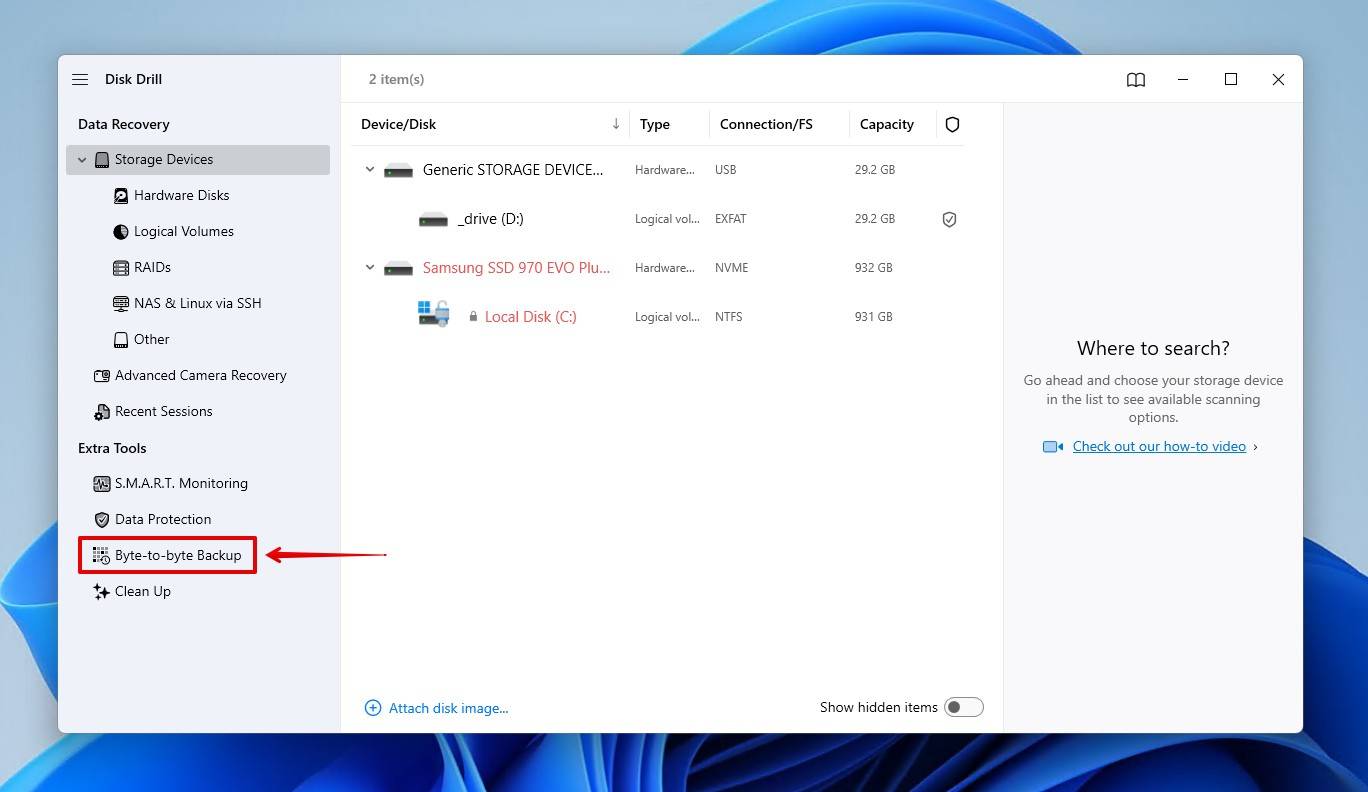
- Go to the Byte-to-byte Backup tab.
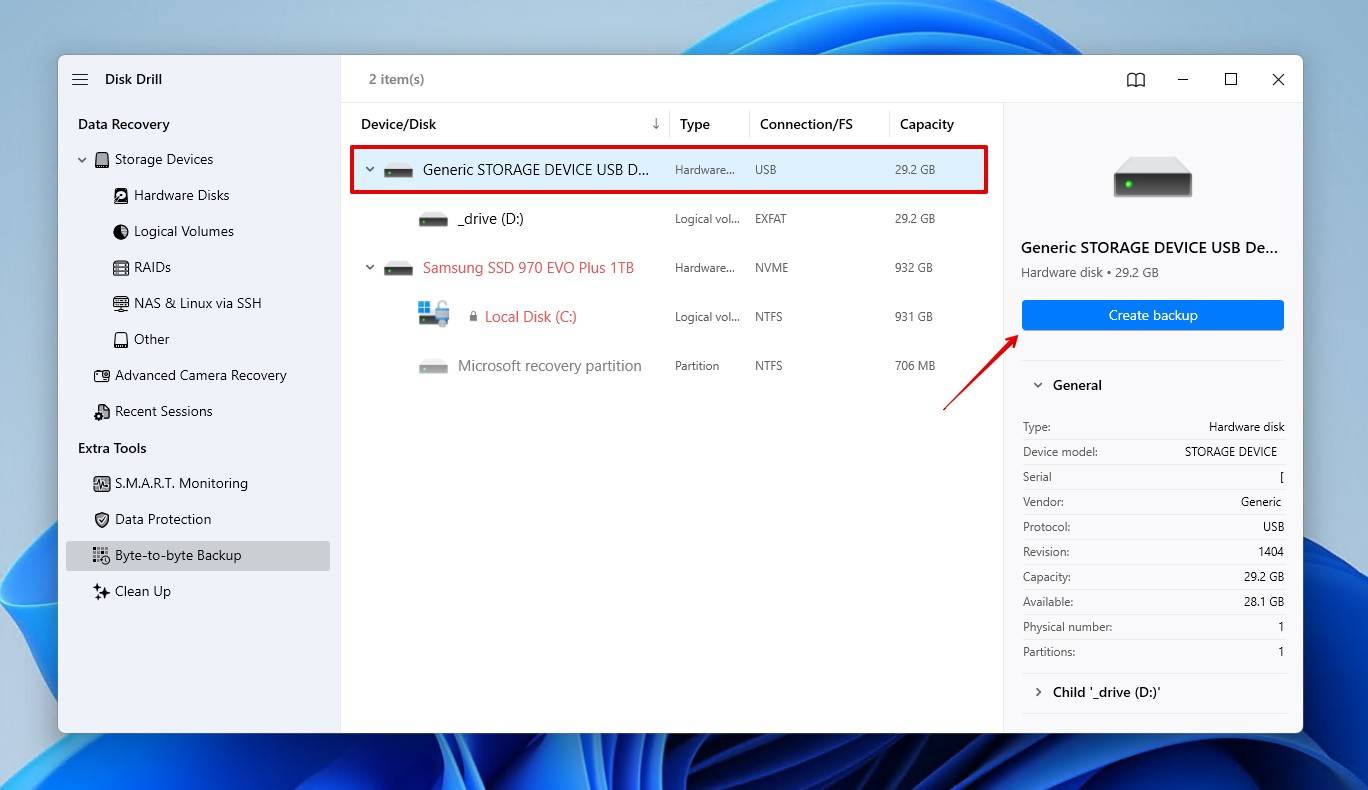
- Select your SD card, then click Create backup.
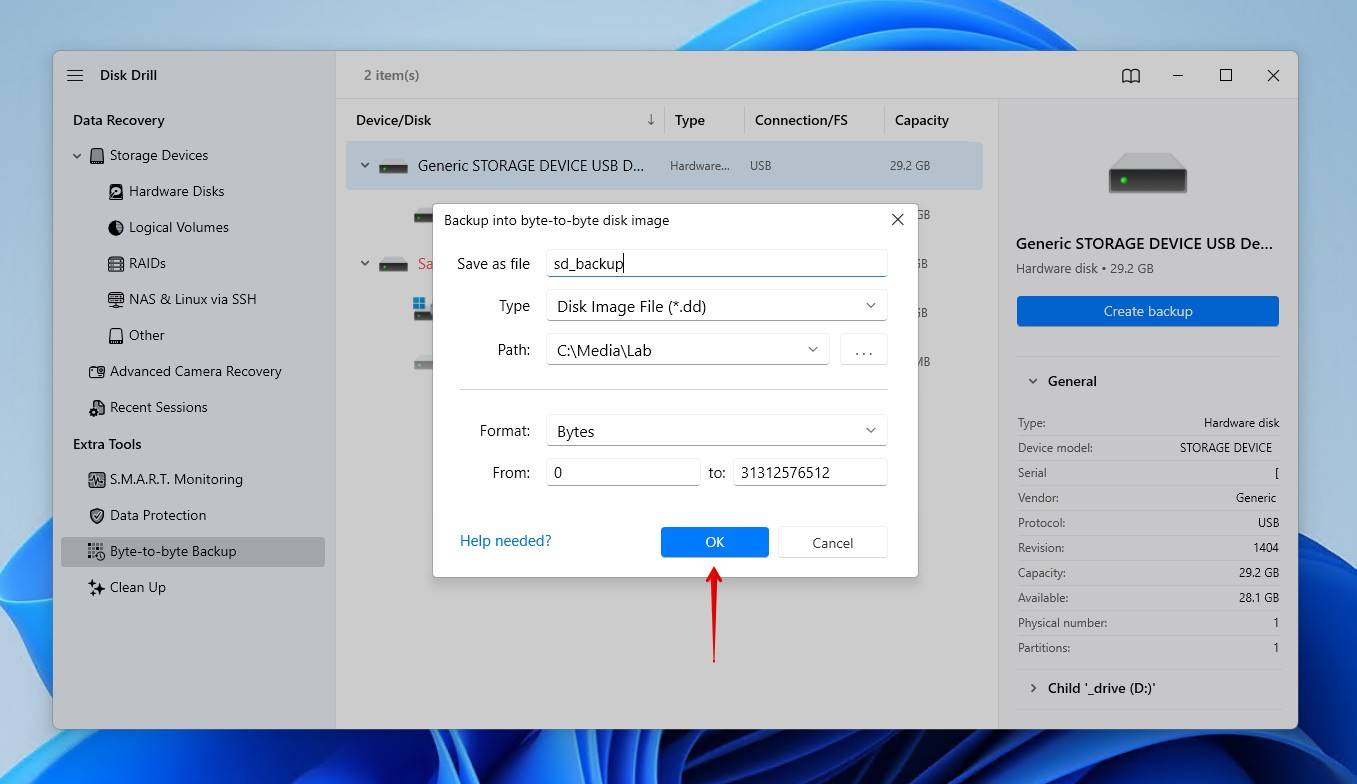
- Give the backup a name and choose where it will be stored. Click OK.
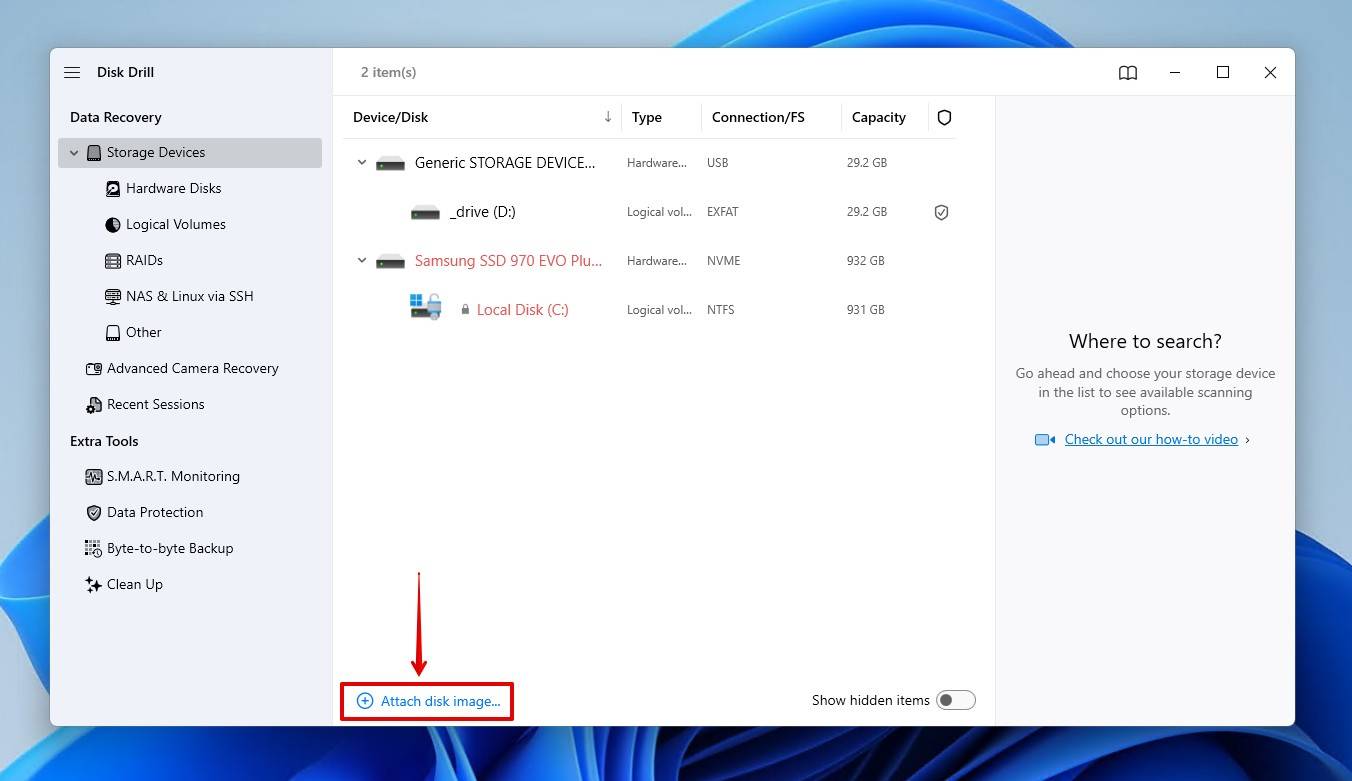
- Return to the Storage Devices tab and assign your backup image using the Attach disk image option.
Step 2: Format the SD Card
There are several ways you can format an SD card. On PC, in your Android phone, in a camera. But, to keep it simple, we’re going to show you the most convenient method on Windows, seeing as it would be impossible to cover all the unique ways phone manufacturers lay out their Settings app.
This is how you format an SD card with Disk Management:
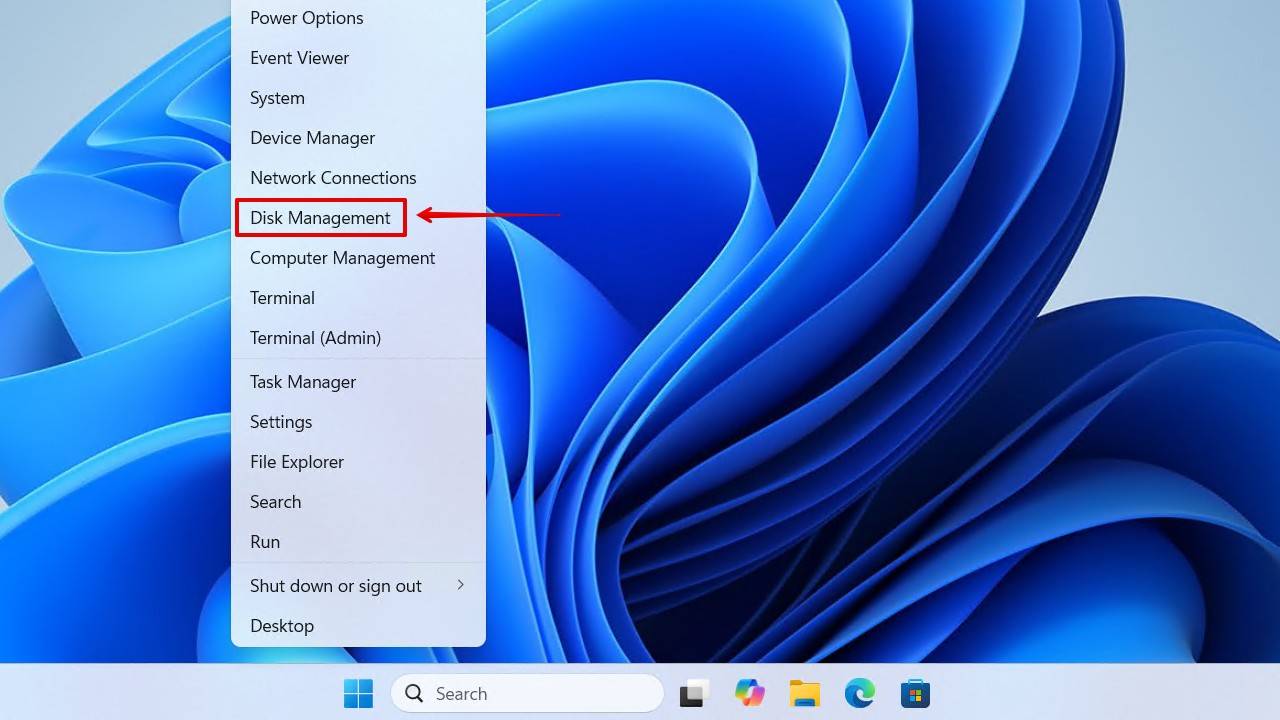
- Right-click Start and click Disk Management.
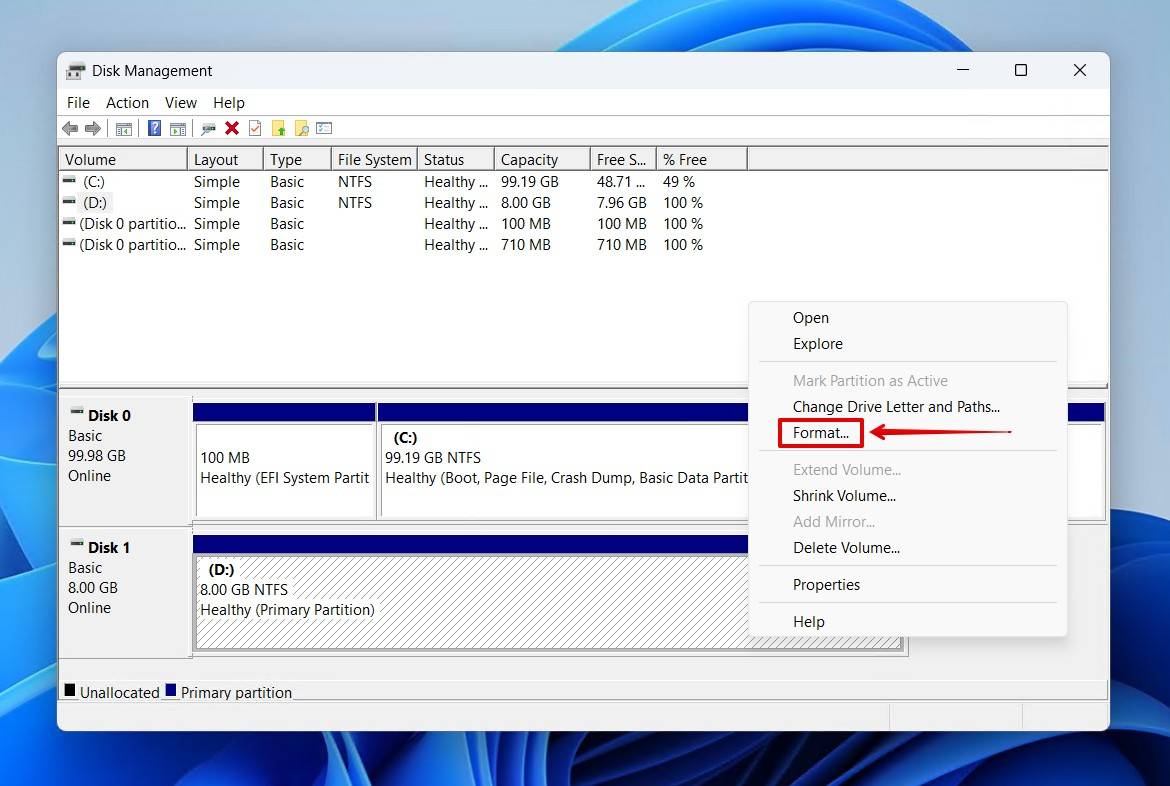
- Right-click your SD card volume, then click Format.
- Give the SD card a name and make sure Perform a quick format is ticked. Click OK.
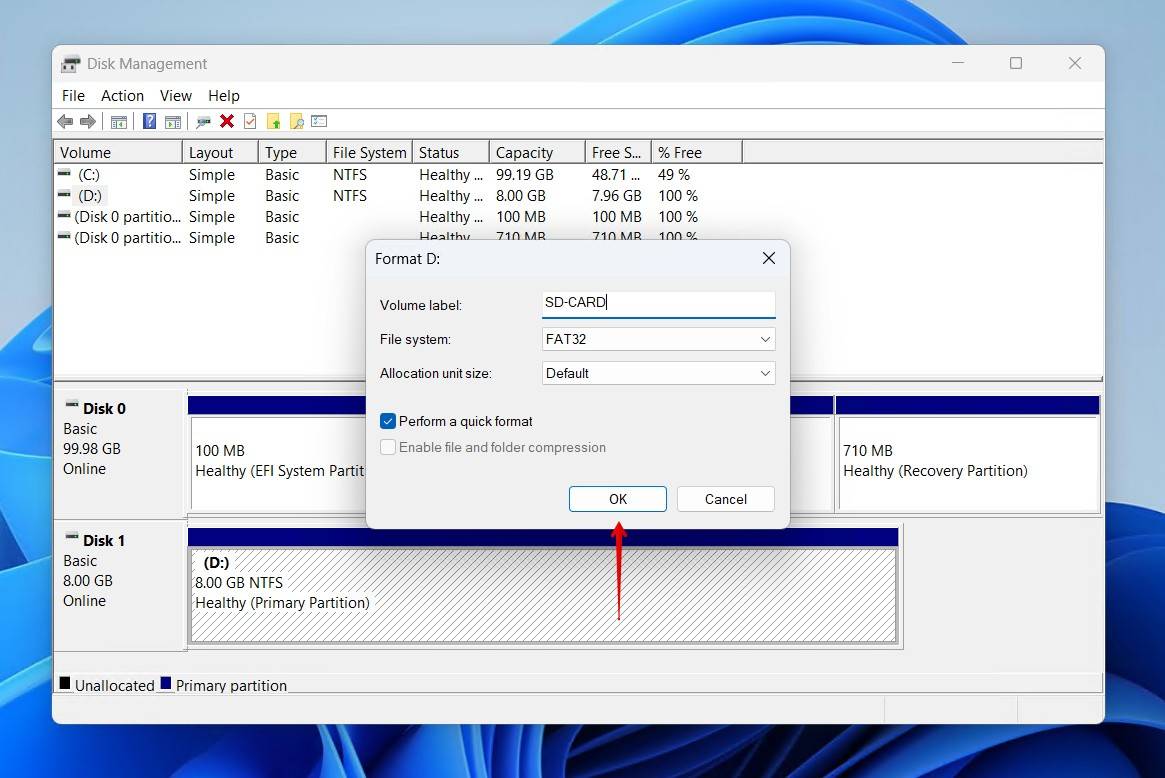
- Click OK to confirm.
Are you someone who’s more comfortable with a command-line interface? You can format the SD card using CMD. Or, if you’re just curious about the other ways to format an SD card, check out our article.
Step 3: Restore Data on a Formatted SD Card (or Recover It if Lost)
Finally, it’s time to get that data back and recover your formatted SD card safely. If your data was accessible in the first step, you can go ahead and move it back across. However, if you need to recover the data from the byte-to-byte image backup, or even the SD card itself if you didn’t back it up, follow the instructions below.
- Return to Disk Drill.
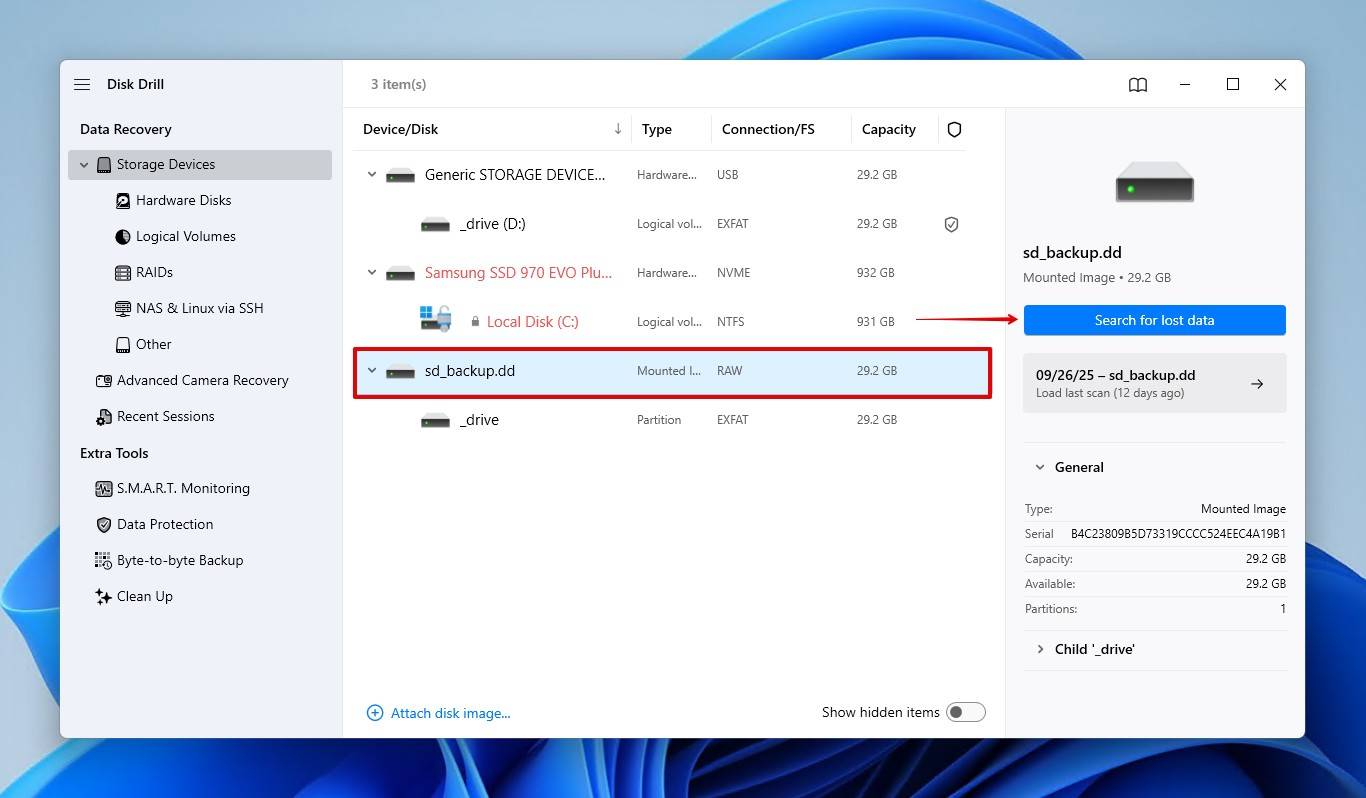
- Select the byte-to-byte image we created earlier. If you didn’t create a backup, select your SD card instead. Click Search for lost data.
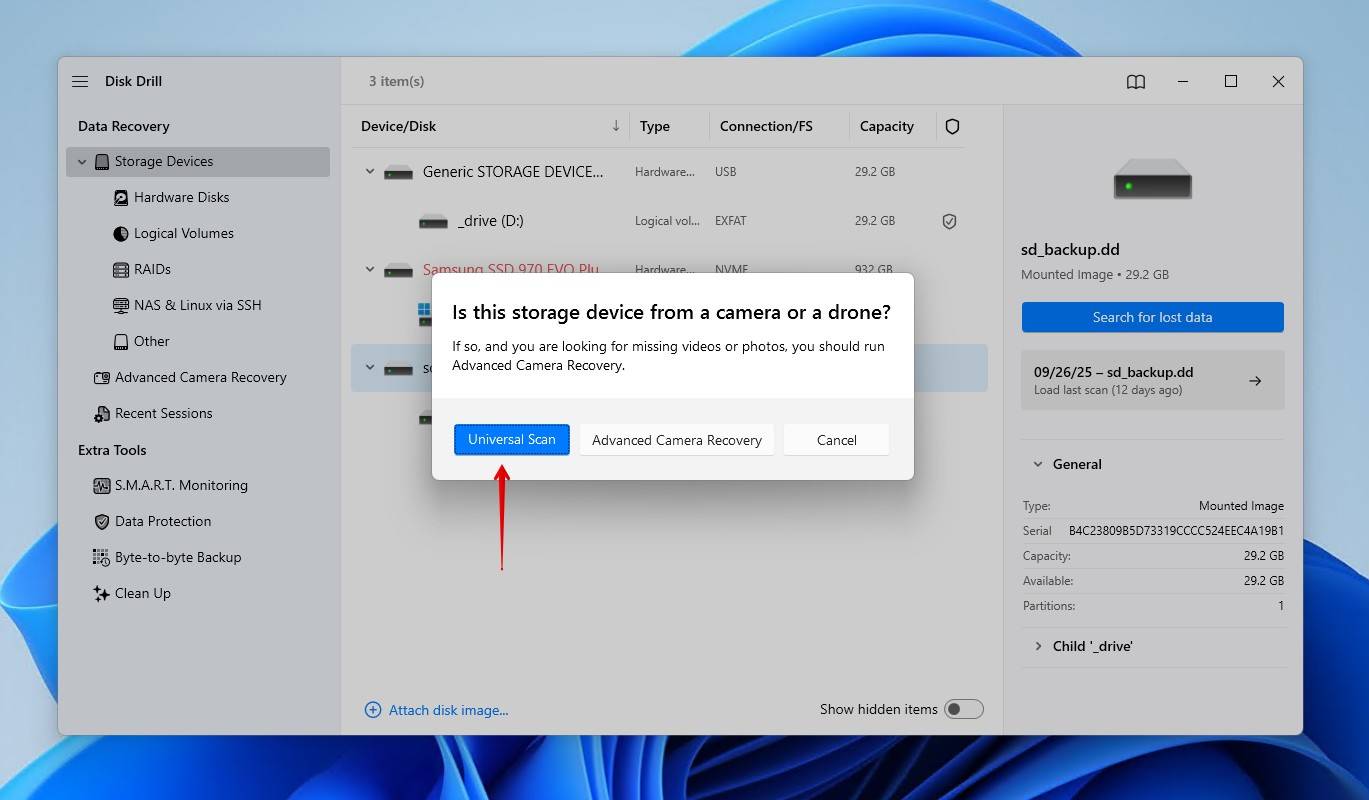
- Click Universal Scan to have Disk Drill find as much data as possible. Alternatively, if the SD card was used in a camera or drone and you’re trying to recover fragmented footage, go with Advanced Camera Recovery instead.
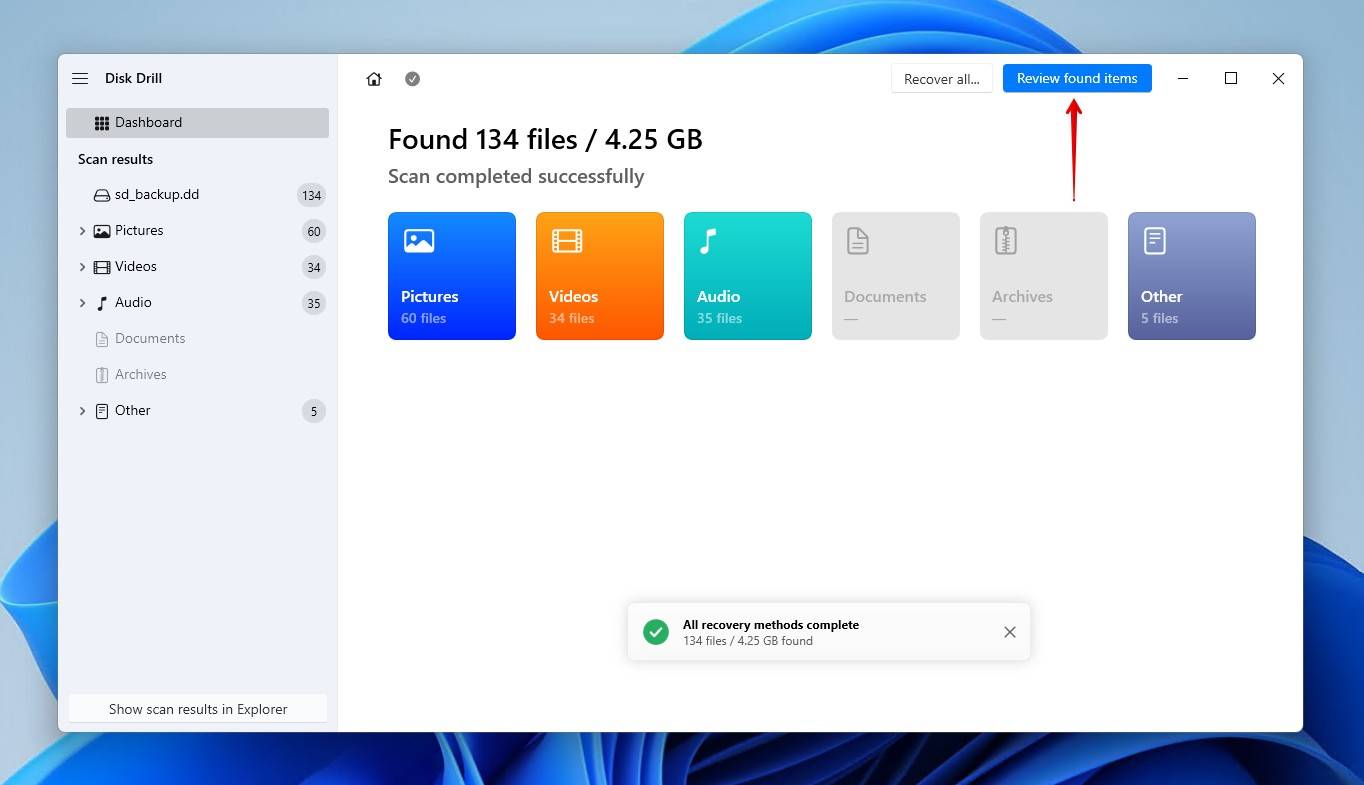
- Click Review found items. Alternatively, you can click on one of the colored file type icons to filter the results. Or, click Recover all to restore everything immediately.
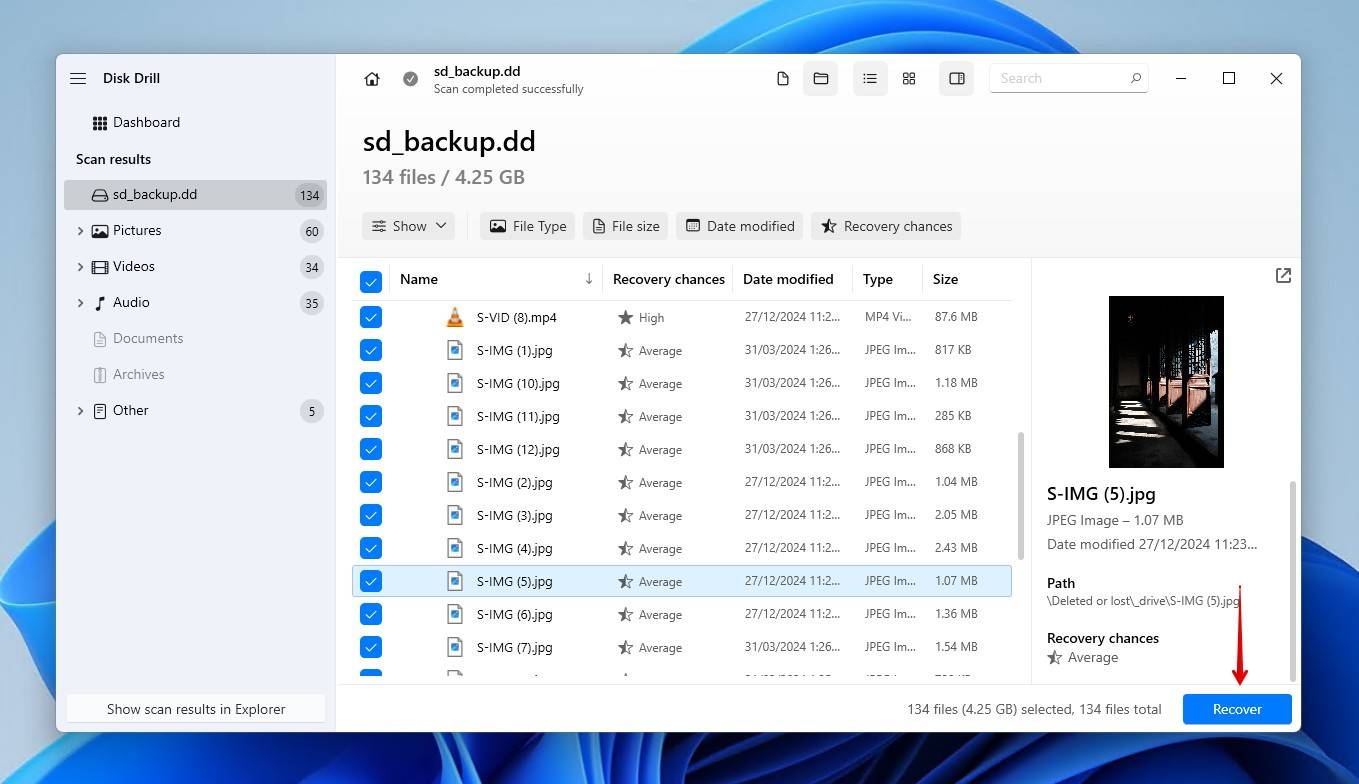
- Preview and select the SD card files for recovery. The filter options above the results help to refine data by file type, size, date modified, and even recovery chances. When ready, click Recover.
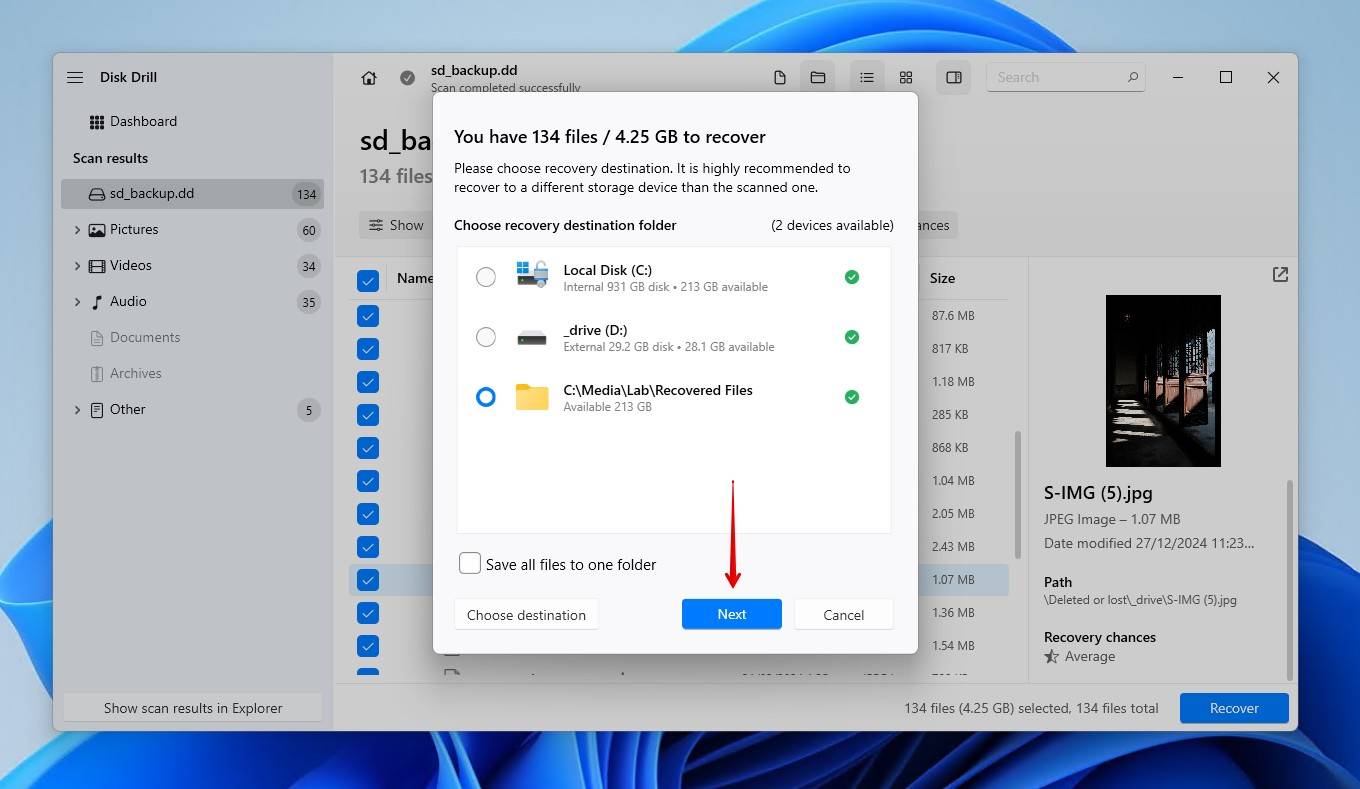
- Choose a location on a separate physical storage device where you will store the recovered files. Click Next to finish SD card recovery.
How to Increase Your Chances of Successful Data Recovery
Encountering data loss for the first time can lead to lots of mistakes, such as improperly formatting the SD card or copying new data to the SD card to see if it still works. If you’re unfortunate enough to be the victim of data loss, there are a few things you can do to maximize your chances of successful data recovery.
- 🤚 Stop using the SD card – Every new action on the SD card puts your data at risk of being overwritten. In its current state, your data can easily be overwritten with new data, resulting in your original data becoming basically unrecoverable.
- 💾 Recover to another drive – Never recover data to the SD card you’re performing recovery on. Data can not only overwrite the data you’re trying to recover, but it has a chance of corrupting the data, further decreasing your chances of recovery.
- 💻 Recover from a copy – When possible, make a byte-to-byte copy of the SD card and recover data from the file instead. Performing recovery on the file instead leaves the original SD card intact, reducing the potential of critical errors.
Making use of these tips, especially recovering from a copy of your SD card, can contribute to a successful recovery of your data. Once you’ve recovered your data, make a backup to protect it against future data loss scenarios.
Сonclusion
We’ve covered everything you need to know about formatting an SD card, from what it is to how to get your data back after it, to answer the question “Will formatting an SD card erase it?”. By now, you should understand that formatting deletes all data on the SD card, but recovery is still possible in many cases if you act quickly.
Going forward, the only way to avoid this is to back up your SD card’s data regularly. It’s harder to implement a reliable strategy given the portable nature of memory cards, but even just copying the essential files to your computer or cloud storage can save you a lot of time spent on recovery.
We hope this guide helped you get your SD card formatted while keeping your data safe. If you have questions, tips, or your own experience with SD card data recovery, feel free to share them in the comments below.
FAQ
- Quick format - this type of format runs by default in Windows OS, it wipes only partition table, removing pointers to your files making them unreadable to your OS, but won't wipe the files themselves, so if you will act quickly you can recover most of your data using data recovery software.
- Normal format - or full format this type of format is useful when you want to completely wipe your data, during this type of format your PC will also check for errors on formatted device. Chances to recover any data after this type of format are slim.